
IAM
What IAM is
Identity & Access Management (IAM) controls who can access your EfficientAI organization and what they can do inside each workspace. EfficientAI uses two independent permission layers on every request:
- Organization role — set per membership (
reader,writer, oradmin). - Workspace role — set per workspace (
Viewer,Editor, orWorkspace Admin, plus optional custom roles).
A user must satisfy both layers to perform an action. Your organization role controls whether you can write anywhere in the org; your workspace role controls what you can do inside the active workspace.
Open-source deployments are capped at 1 org member and 1 default workspace. Multi-member orgs and additional workspaces require an Enterprise license.
Organization roles
Manage organization roles from IAM → Organization (admin only) or Settings → Team.
| Role | Scope | Typical use |
|---|---|---|
| Reader | Read-only for the entire organization | Auditors, stakeholders who only view dashboards |
| Writer | Create, update, and delete most org resources | Engineers and operators doing day-to-day work |
| Admin | Everything a writer can do, plus user/team management, API keys, and org settings | Org owners and IT admins |
Org readers are always read-only If your organization role is Reader, every mutating API call (
POST,PATCH,DELETE) is blocked — even if you hold Workspace Admin in a workspace. Workspace roles cannot override an org-level read-only membership.
Org admins bypass workspace membership checks and receive all workspace capabilities in every workspace.
API keys behave differently depending on whether they are linked to a user:
- User-bound keys (created while signed in) carry the linked user's organization role, workspace memberships, and capabilities. They are subject to the same RBAC rules as that user's session.
- Unbound keys (legacy keys with no linked user) bypass workspace membership and capability checks and receive full workspace access within the key's organization. Prefer user-bound keys for least-privilege automation.
Workspace roles
Each workspace has its own membership list. When you are added to a workspace, you receive one of three seeded system roles (or a custom role defined by an org admin):
| Workspace role | Can do | Cannot do |
|---|---|---|
| Viewer | View calls, metrics, evals, simulations, reports, and workspace members | Import, edit, delete, run evaluations, change settings, manage members |
| Editor | Everything Viewer can do, plus create/update resources | Delete call imports, rename workspace, add/remove members, change workspace roles |
| Workspace Admin | Full access in that workspace, including delete, workspace settings, and member management | — |
Roles are cumulative: Editor includes all Viewer permissions; Workspace Admin includes all Editor permissions.
What each role needs for common actions
| Action | Minimum org role | Minimum workspace role |
|---|---|---|
| View call imports, agents, metrics | Reader | Viewer |
| Upload / import calls, edit rows | Writer | Editor |
| Delete call imports or batches | Writer | Workspace Admin |
| Create or edit metrics (workspace-scoped) | Writer | Editor |
| Run evaluations | Writer | Editor |
| Rename a workspace | Writer | Workspace Admin |
| Add/remove workspace members | Writer | Workspace Admin |
| Create a new workspace | Writer | (creator becomes Workspace Admin automatically) |
| Delete a workspace | Admin | (org admin only) |
| Manage organization users & invitations | Admin | (not workspace-scoped) |
Configure IAM
What you configure
- Organization name and membership (invitations, roles, password resets)
- Workspace membership and per-workspace roles
- Custom workspace roles (capability bundles for narrow access slices)
IAM tabs
Open IAM in the sidebar. The page has three tabs:
| Tab | Who can access | Purpose |
|---|---|---|
| Organization | Admin | Org name, member list, invitations, password resets |
| Workspace Members | All members | Assign org users to workspaces with roles |
| Workspace Roles | Admin | Define custom workspace roles from the capability registry |
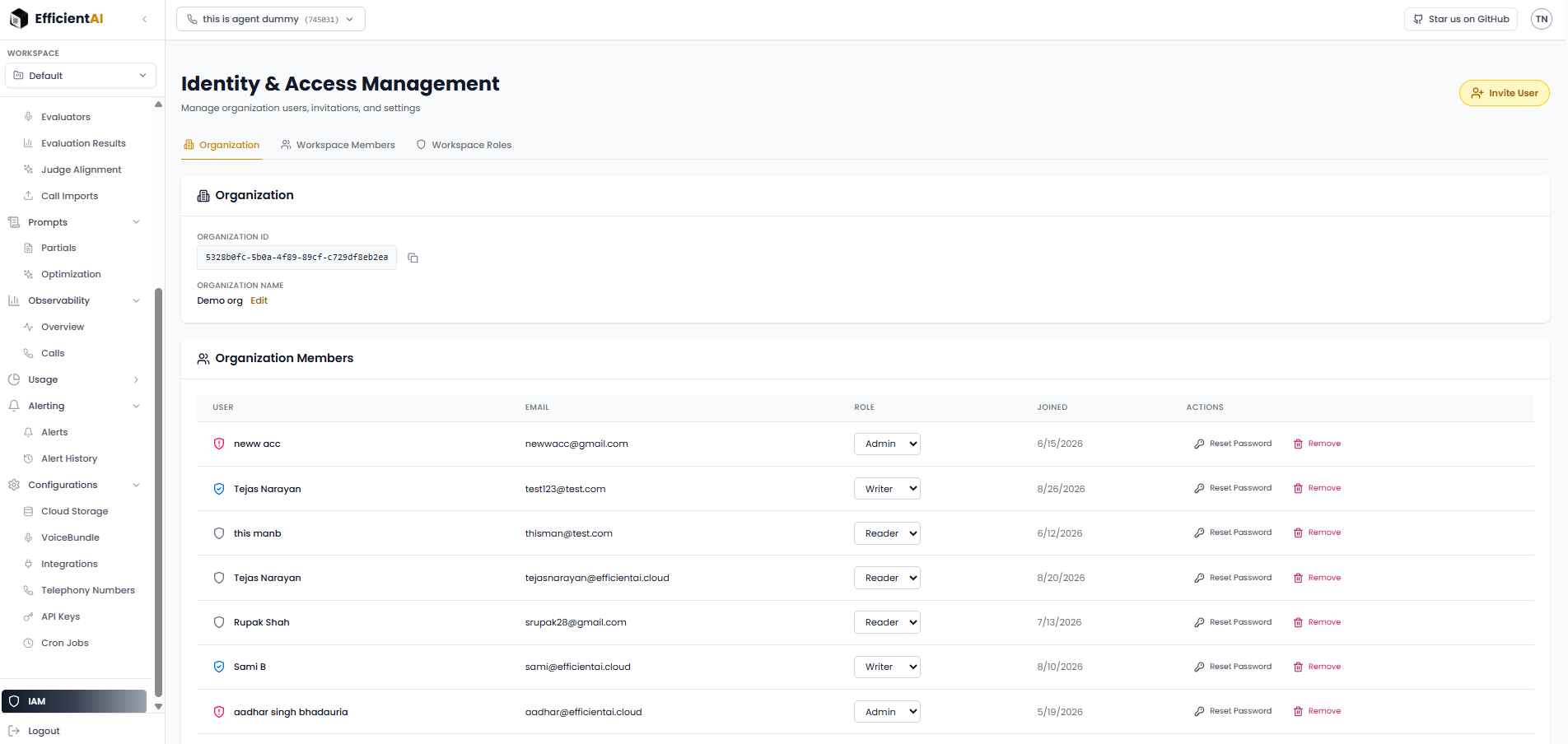
Recommended flow
- Invite org members from Organization (admin only).
- Create workspaces from the workspace switcher in the sidebar.
- Assign members and roles from Workspace Members.
- Define custom roles under Workspace Roles when system roles are too broad.
Org admins should review Workspace Members after creating workspaces and remove or downgrade memberships that are too broad for your team model.
How to manage workspace access
- Open IAM in the sidebar.
- Go to Workspace Members, select a workspace, and assign roles to org members.
- Org admins can define custom roles under Workspace Roles.
The workspace dropdown shows your current role in the selected workspace (for example, Viewer). Use the members table to review who has access and change roles — if you hold Workspace Admin in that workspace and are an org Writer or Admin.
Notes:
- You can only manage members in a workspace if you are an org Writer or Admin and hold Workspace Admin (or org admin) in that workspace.
- Workspace Admins cannot demote their own role; another admin must change it.
- Users with org Reader can see member lists where allowed but cannot change memberships.
Workspaces and scoping
Workspaces provide in-organization project isolation. Multiple teams or projects can share one EfficientAI organization while keeping their agents, metrics, call imports, and prompt libraries separate.
The workspace switcher lives at the top of the left sidebar, directly under the EfficientAI logo. When you switch workspaces, all data views refetch automatically so you never see stale rows from the previous workspace.
The UI stores your active workspace in the browser and sends it on every API request as the X-Workspace-Id header. If a request arrives without the header, the backend falls back to the organization's Default workspace.
Custom workspace roles
Workspace permissions are implemented as capabilities grouped by product area. System roles are bundles of these capabilities; org admins can define custom workspace roles in IAM → Workspace Roles by picking capabilities from this registry:
| Domain | View | Create / edit / run | Delete / admin |
|---|---|---|---|
| Calls (call imports) | View batches and rows | Import and update | Delete imports |
| Metrics | View definitions | Manage metrics | — |
| Evaluations | View runs and results | Run evaluations | — |
| Simulation | View agents, personas, scenarios | Manage simulation resources | — |
| Reports | View reports | Generate reports | — |
| Workspace | View member list | — | Rename workspace; add/remove members and roles |
Custom roles are useful when a user needs a narrow slice of access (for example, view + run evals but not import calls). Assign them per workspace from IAM → Workspace Members.
Enterprise IAM
Multi-member organizations and additional workspaces require an Enterprise license. Enterprise also unlocks advanced authentication (OIDC, SAML, SCIM, MFA enforcement, audit export). See the Authentication guide for deployment recipes.
Community & contact
- Found a bug or have a feature request? Open a GitHub issue.
- Join our Discord for faster replies!