
Evaluator
What an evaluator is
An evaluator is the engine that executes runs and applies metrics to score them. It is the piece that brings every other object together:
Because the inputs are fixed configuration, an evaluator gives you controlled comparisons: hold the agent constant and vary the model, or hold the model constant and vary the prompt, and the score delta is attributable.
What metrics are
Metrics are the scoring rules applied to a finished run. EfficientAI ships four families, and you enable the ones that match your quality goals per workspace/agent context.
| Family | Measures | Examples |
|---|---|---|
| LLM-evaluated conversation | Whether the agent behaved correctly in dialogue | Instruction following, professionalism |
| Acoustic | Raw signal quality of the audio | Jitter, shimmer, pitch variance |
| AI voice quality | Perceived voice naturalness and consistency | MOS-style scores, consistency signals |
| Custom | Anything specific to your product | boolean, enum, number_range, text, rating |
Custom metrics are the escape hatch: when a business rule matters to you and to nobody else — "did the agent quote the correct policy number?" — define it as a custom metric with the return type that fits, and it is scored alongside the built-ins.
Configure an evaluator
What you configure
- Metric selection and enablement
- Suite-level run behavior
- Inbound or outbound execution mode
Recommended flow
- Enable metrics that match your quality goals.
- Group agent/persona/scenario combinations into evaluation suites.
- Run and inspect evaluator results.
Keep the enabled metric set stable between comparison runs. Adding or removing a metric changes the score card shape, which makes before/after runs harder to read.
See also: How It Works for the full evaluation lifecycle.
How to create an evaluator suite
- Open Evaluators under Evaluations.
- Click Create Suite in the top-right.
- Select agent and persona.
- Select one or more scenarios.
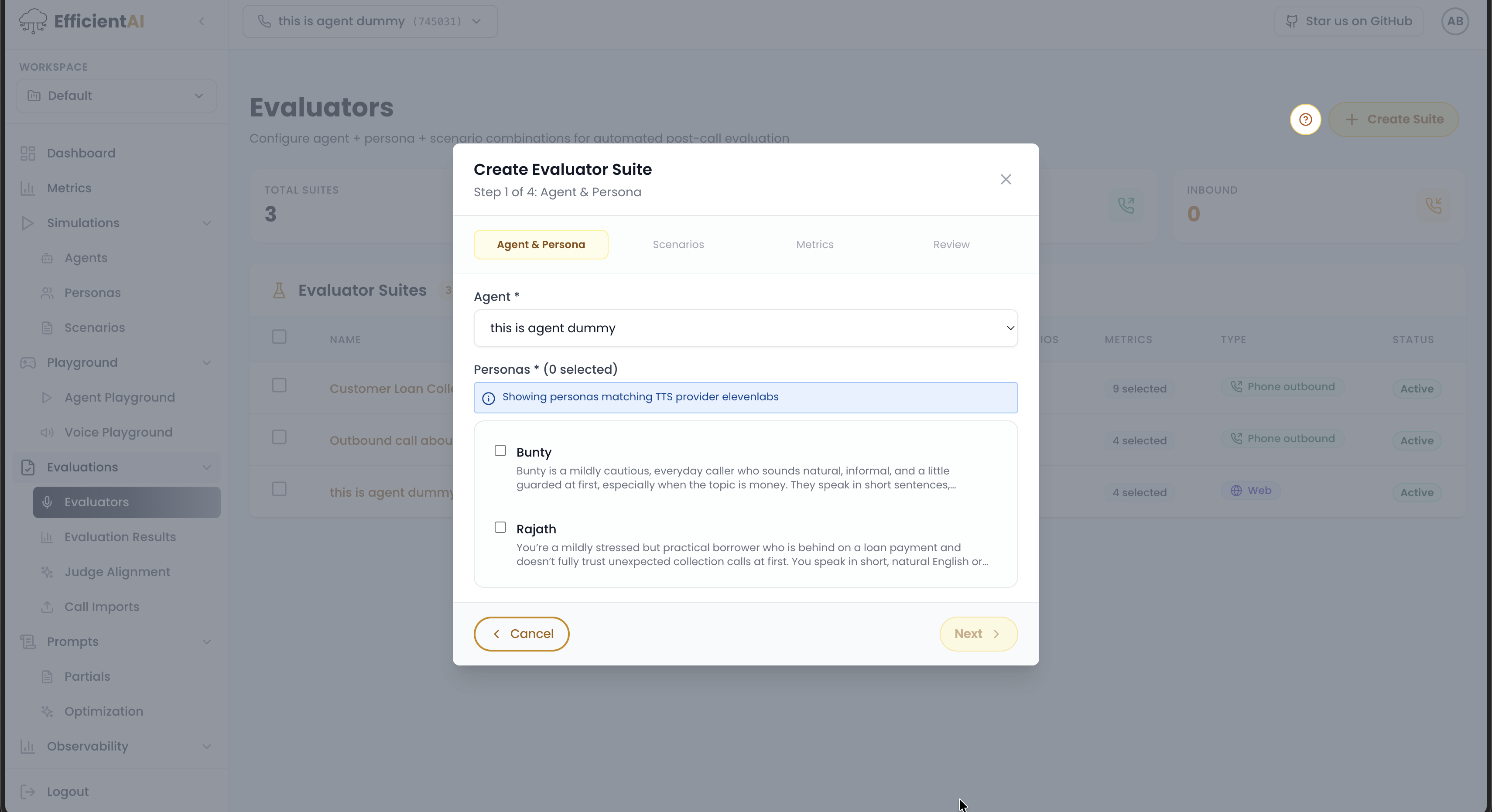
- Choose the number of metrics for success criteria.
- Click Review.
- Enter suite name and default run count.
How to run evaluations
- Open Evaluators under Evaluations.
- Under evaluator suites, find the suite you want to run.
- Select the checkbox next to a suite and click Run.
- Open Runs, set the number of runs, then click Queue Runs.
- Track progress in Evaluation Results.
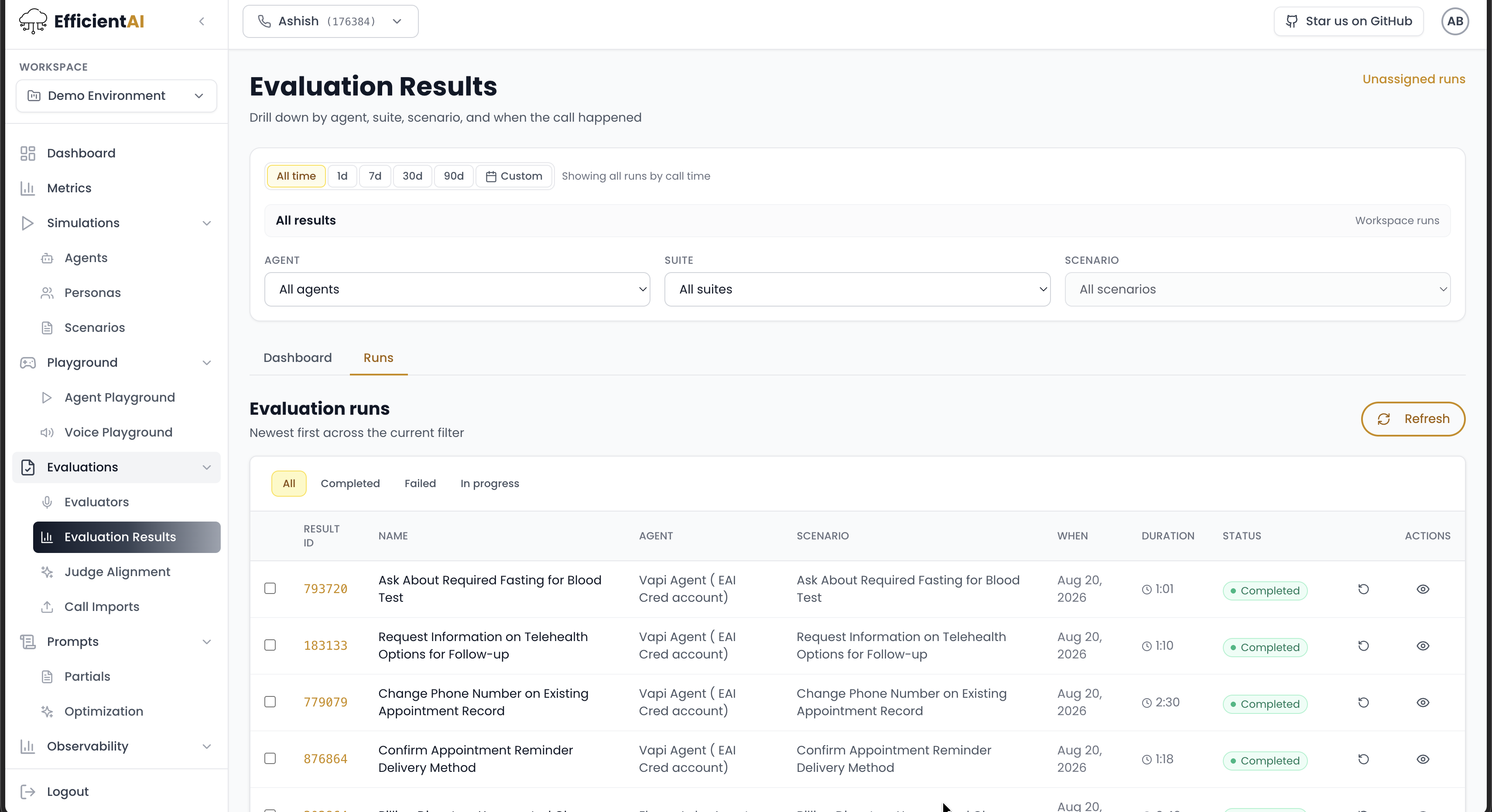
Results appear in the Evaluation Results section once runs complete.
Judge alignment
Judge alignment is available under Evaluations > Judge Alignment. Detailed public documentation is pending.
Community & contact
- Found a bug or have a feature request? Open a GitHub issue.
- Join our Discord for faster replies!