
Prompts
Prompts in EfficientAI are reusable instructions you save and apply across agents and evaluations.
Core workflows
Create and edit
- Open Prompts > Partials in the sidebar.
- Click New Prompt to create a prompt partial or agent prompt.
- Save updates to version your content over time.
Search and organize
- Search by name or description.
- Add tags for filtering and discovery (for example:
evaluation,compliance,sales).
Preview
Switch between Preview (rendered markdown) and Raw (source markdown) while reviewing content.
Version history
Each save creates a new version snapshot.
| Action | Description |
|---|---|
| View versions | Browse version history with timestamps |
| Compare | Compare current vs a historical version |
| Revert | Restore an earlier version (creates a new latest version) |
| Clone | Duplicate a prompt into a new prompt |
AI-assisted authoring
Prompt tooling requires at least one configured AI provider.
- AI Generate: create a first draft from your objective, tone, and format.
- AI Improve: refine existing content while preserving intent.
Both support provider/model selection, or auto-detecting a default provider.
Where prompts are used
Saved prompts can be reused in:
Workspace scoping
Prompts are scoped to the active workspace. Switching workspaces shows a different prompt library. For shared standards, clone prompts into each workspace where needed.
How to use prompts
- Go to Prompts > Partials.
- Click New Prompt.
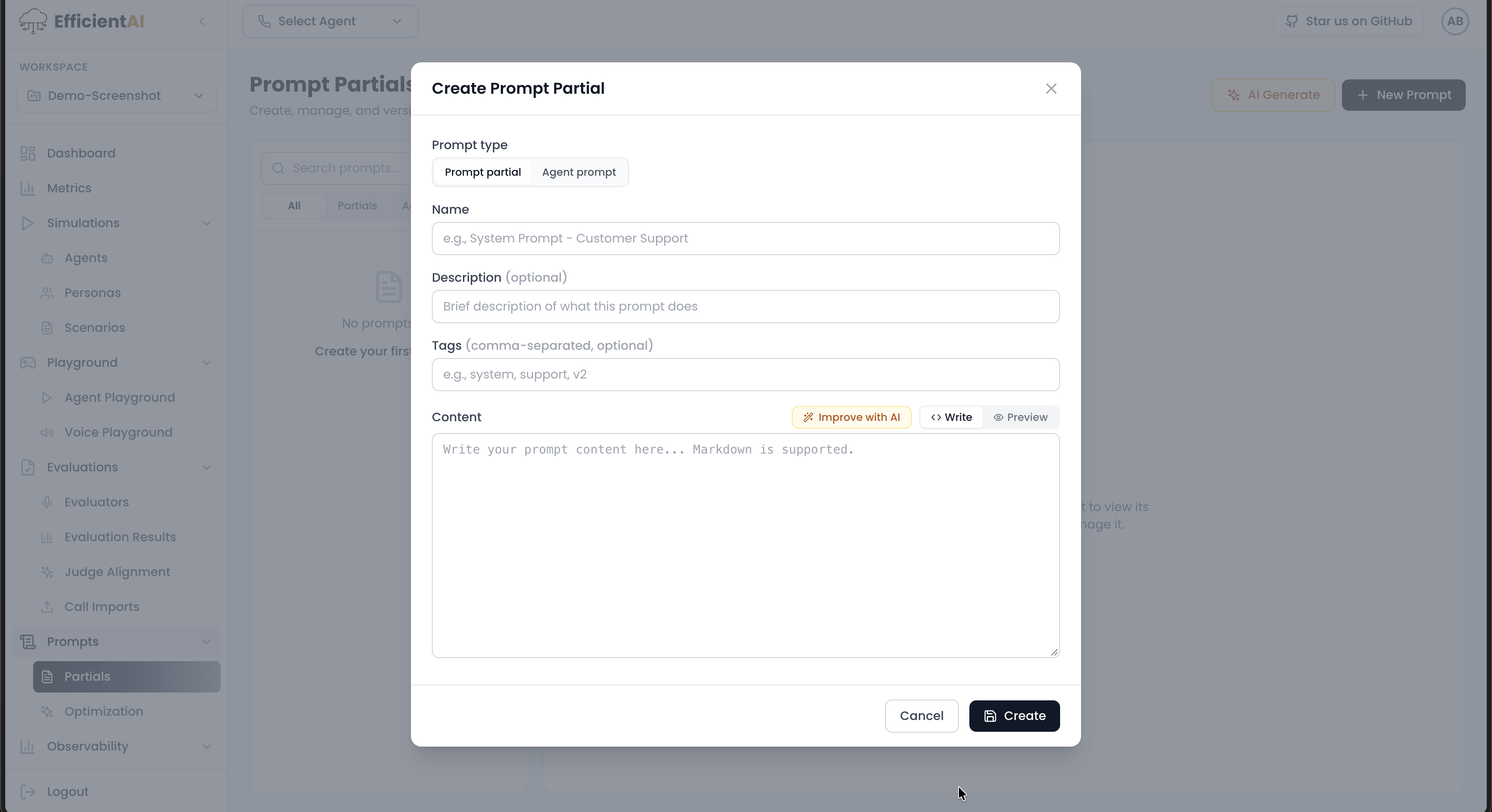
- Choose either Prompt Partial or Agent Prompt.
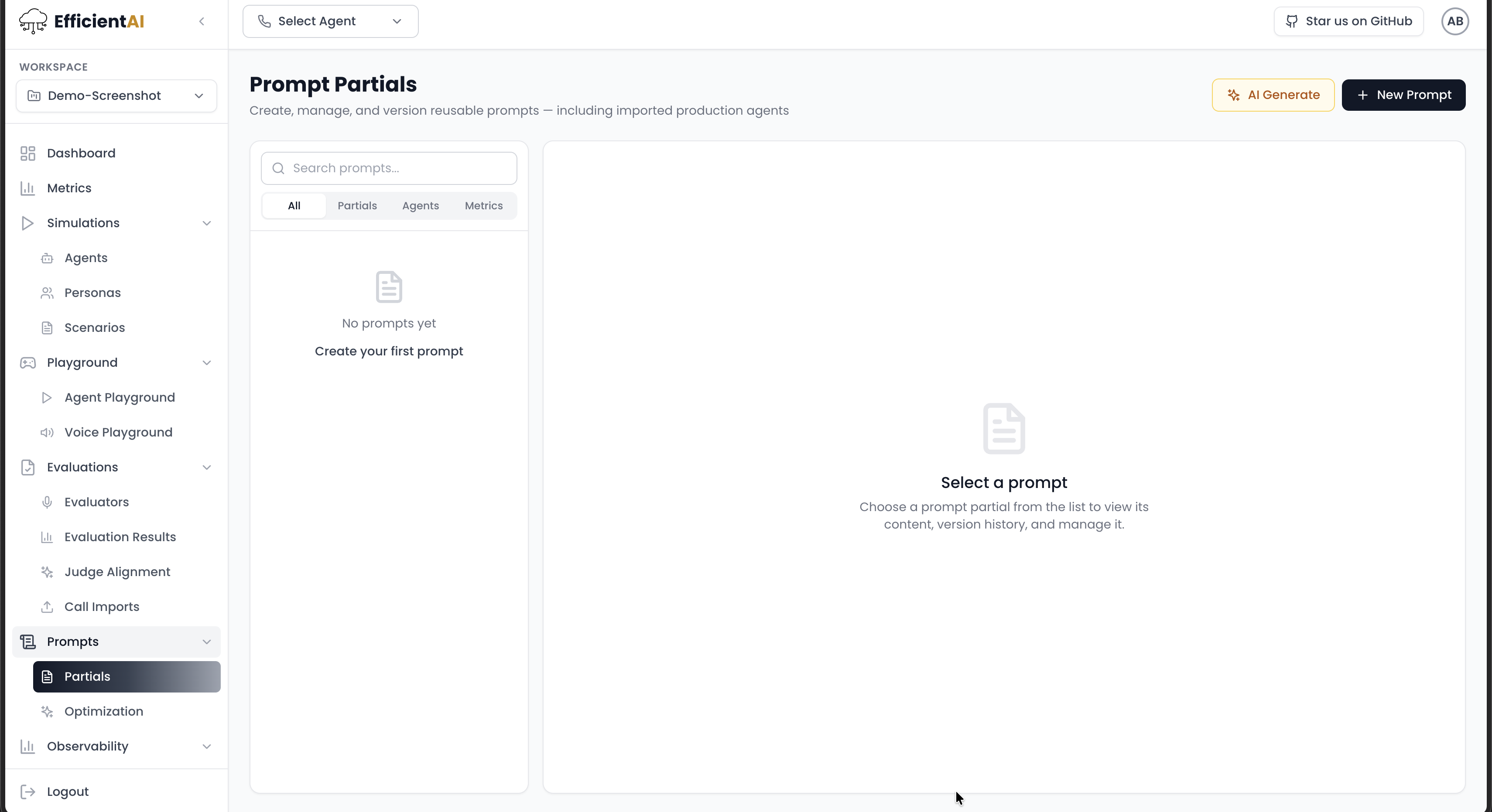
Prompt Partial
- Enter name.
- Add description.
- Add tags.
- Write or paste content.
- Optionally click Improve with AI.
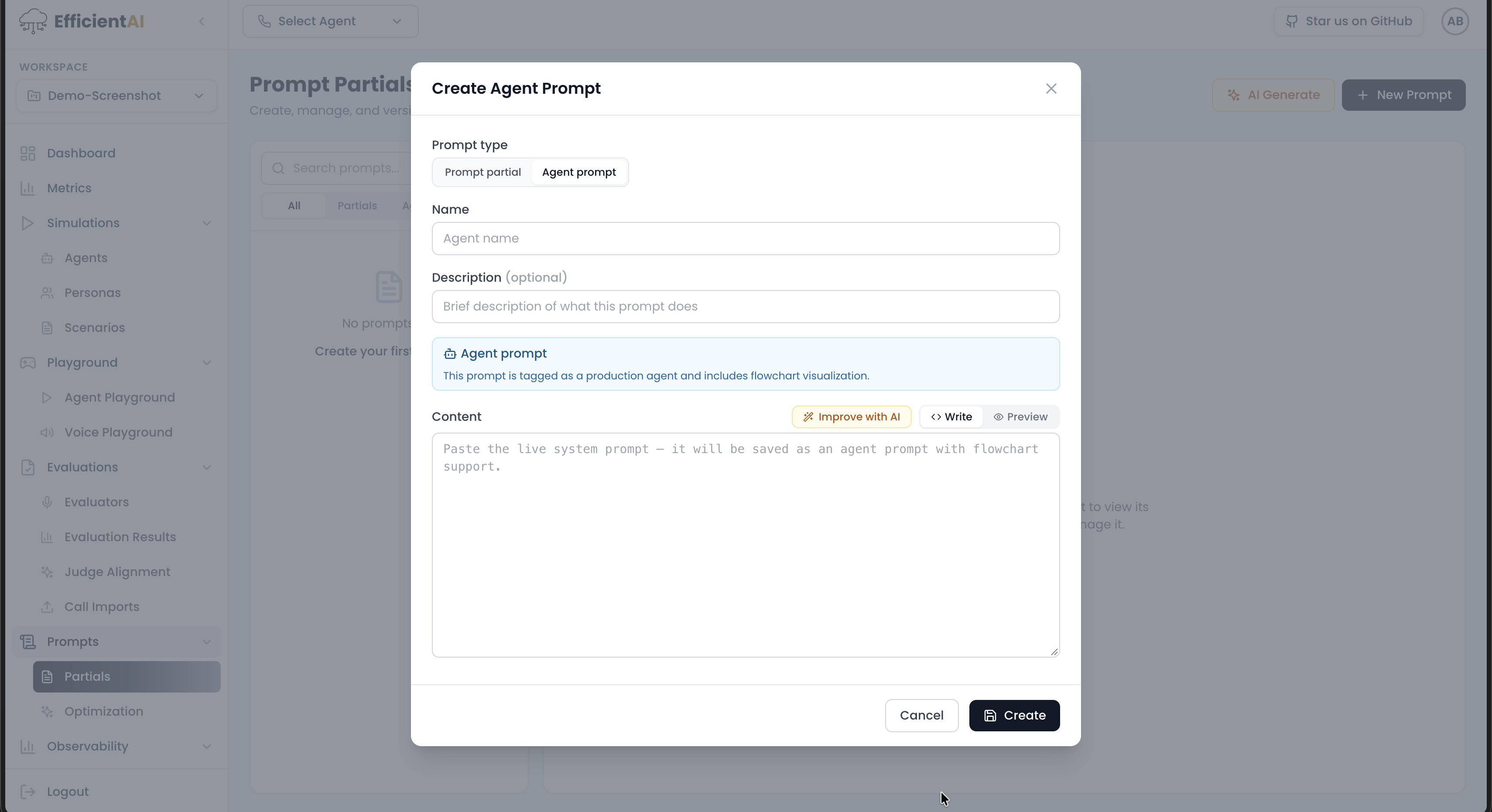
Agent Prompt
- Enter name.
- Add optional description.
- Write or paste content.
- Optionally click Improve with AI.
- Click Create Prompt.
Community & contact
- Found a bug or have a feature request? Open a GitHub issue.
- Join our Discord for faster replies!